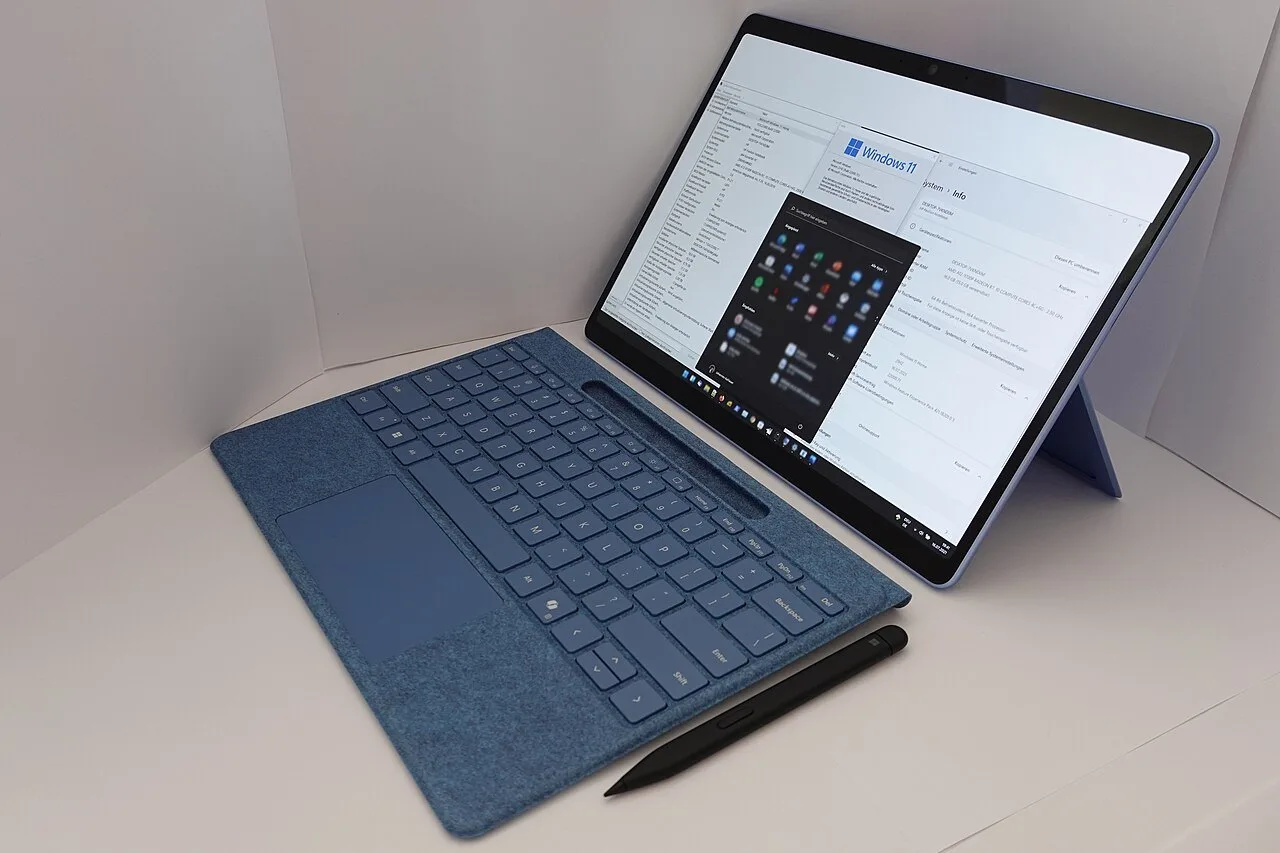
Windows 11 version 24H2 Home and Pro reached end of servicing on 13 October 2026. Those PCs keep working but get no more security or bug fixes. Enterprise and Education editions are supported until 12 October 2027. Home and Pro users should install the October update, then move to 25H2 or 26H2 through Windows Update.
Table of contents 5 sections
- Windows 11 Home and Pro version 24H2 reached end of servicing on 13 October 2026.
- The October Patch Tuesday update, KB5127648, was the final security update for those editions.
- Enterprise and Education editions of 24H2 stay supported until 12 October 2027.
- Moving to 25H2 or 26H2 uses a small enablement package and one restart, not a reinstall.
- Windows 11 Enterprise and Education 23H2 reach end of servicing on 10 November 2026.
Windows 11 24H2 end of support arrived on 13 October 2026 for the Home and Pro editions, and the Patch Tuesday update Microsoft shipped that day, KB5127648, is the last security fix those PCs will receive. Enterprise and Education machines on the same version get another year, until 12 October 2027.
The date was not a surprise. Microsoft's 2026 end of support list has named Windows 11 Home and Pro, version 24H2, among the products reaching end of servicing on 13 October for months. What catches people out is that 24H2 does not feel old. It has been the version preinstalled on new Windows 11 PCs since October 2024, so plenty of laptops bought in the past two years are on it.
What Windows 11 24H2 end of support actually stops
Nothing switches off. A 24H2 PC still boots, runs apps and opens files exactly as it did on 12 October. The change is what Microsoft stops sending. Its lifecycle documentation says that after end of support there are no new security updates, no non-security updates and no free or paid assisted support for that version.
Windows Latest, which tested the October release, put the practical effect plainly: those PCs will not receive security fixes, fixes for known issues, time zone updates or technical support. The security part is the one that matters. Every month Microsoft patches flaws in Windows, and from November onward any new hole found in 24H2 will stay open on Home and Pro machines that remain on it.
How many PCs are in this position?
Nobody outside Microsoft publishes a clean count for one Windows 11 version. StatCounter's figures for September 2026 show Windows 11 as a whole on 71.44 percent of Windows desktops worldwide, with Windows 10 on 27.83 percent, but the tracker does not split Windows 11 by release.
The safer assumption is that a large share of consumer PCs were on 24H2 until recently. Microsoft has been pushing 25H2 to eligible Home and Pro devices automatically, according to Windows Latest, so many machines will already have moved without their owners noticing. The ones left behind tend to be PCs with paused updates, low disk space or a driver block.
What the final 24H2 update, KB5127648, changed
The October update raised 24H2 to build 26100.9711, alongside 26200.9711 for 25H2 and 26300.9711 for 26H2. Features arrive gradually, but the fixes apply to every eligible PC once installed. Among the changes Windows Latest listed:
- File Explorer previews downloaded PDF files again, while HTML files get a warning with a "Preview anyway" button.
- File History works again with external drives and network locations after the September update broke it.
- Domain trust is restored on domain-joined PCs hit by the 14 September emergency update.
- Bluetooth fixes cover volume sync, phantom connections and LE Audio.
- PC-to-PC Migration is removed in favour of Windows Backup.
The Copilot key can now be remapped to the context menu, Search or an app, and Emoji 17.0 is included. None of that changes the support picture: install it, then move on.
How to get off 24H2 in a few minutes
The good news is that 24H2, 25H2 and 26H2 share the same underlying platform. Moving between them is an enablement package, not a full reinstall. Windows Latest measured the 26H2 package at roughly 174KB on x64 PCs, because most of the new code is already on the machine from monthly updates and a single restart switches it on. Microsoft began rolling out 26H2 on 29 September.
- Press Win + R, type winver and press Enter to see which version you run.
- If it says 24H2, open Settings, then Windows Update, and install KB5127648 or any newer cumulative update first.
- Check the same page for the 25H2 or 26H2 feature update and choose download and install.
- Restart when asked. The whole process usually takes minutes rather than an hour.
- If the offer never appears, look for a paused update setting, free up disk space, or check the Windows release health page for a compatibility hold on your hardware.
One exception: PCs that shipped with Windows 11 26H1, a platform release for some new hardware, will not get 26H2. They follow their own servicing track.
While you are in Settings, it is a sensible moment to review how you sign in. A Microsoft account protected by a passkey instead of a password is much harder to phish, and that protection does not depend on which Windows build you run.
Which Windows deadlines come next
For businesses, the next date is 10 November 2026, when Windows 11 Enterprise and Education version 23H2 reach end of servicing, according to the same Microsoft lifecycle page. IT teams still running 23H2 in managed fleets have under two weeks.
Home users have a different item to check. Microsoft's original Secure Boot certificate for the Windows boot loader expired on 19 October, and the Windows Security app now shows whether a PC has received the 2023 replacement. Open Windows Security, then Device security, and look at the Secure Boot section after you finish the version upgrade. If both checks come back clean, your PC is on a supported version with current boot protections, and the next decision Microsoft forces on you is a year away.
Frequently asked
- Ending Support in 2026 — Microsoft Learn
- I tested Windows 11 October 2026 Update, here's everything new, improved and fixed — Windows Latest
- Desktop Windows Version Market Share Worldwide — StatCounter

0 comments
No comments yet — be the first.